



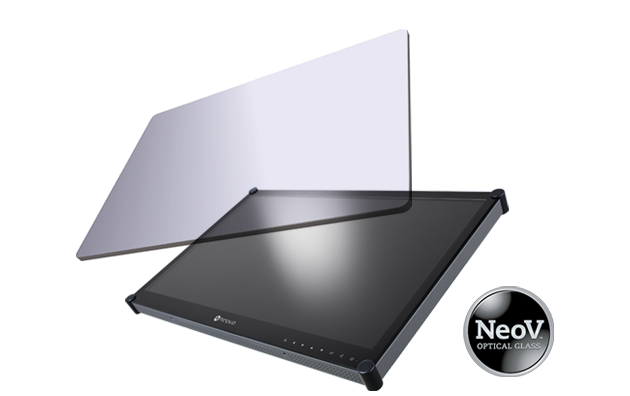
 NeoV™ Optical Glass Screen
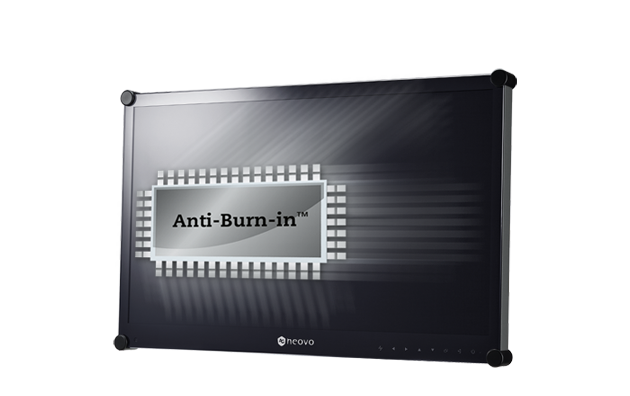 Anti-Burn-in™ Technology
By assigning roles with specific permissions, organizations can ensure that users only access the features necessary for their responsibilities. This helps maintain system security, reduce configuration errors, and simplify SI control.
Common roles include SI who manage organizations and devices, managers who oversee operations, and general users who interact with devices.
Accessing Role Management
To open Role Management:
- Navigate to Role Management from the left sidebar.
- The Role Management page displays all available roles within the organization.

Each role defines a set of permissions that determine what users assigned to that role can view or modify.
Default Roles
Neovo Manager includes several predefined roles:
To pick up a draggable item, press the space bar. While dragging, use the arrow keys to move the item. Press space again to drop the item in its new position, or press escape to cancel.
| Role | Description |
|---|---|
| SI | System Integrator with full system permissions. |
| Manager | Can manage devices and operational settings. |
| User | Can access limited operational functions. |
| Guest | Read-only access to selected features. |
To pick up a draggable item, press the space bar. While dragging, use the arrow keys to move the item. Press space again to drop the item in its new position, or press escape to cancel.
These roles help organizations quickly assign permissions based on typical responsibilities.
Creating a Customized Role
SI can create additional roles to match specific organizational needs.
To create a new role, please follow the steps:
- Click Add Customized Role.

- Enter a Role Name.

- Choose whether to apply the default permission template.

- Click Save to create the role.

After the role is created, permissions can be configured from the permission settings page.
Viewing Role Permissions
To view the permissions assigned to a role:
- Locate the role in the role list.

- Click on View icon
This opens the permission configuration interface where SI can review or modify the permissions assigned to that role.
Next Step
After creating or selecting a role, SI can configure detailed permissions for system features.