



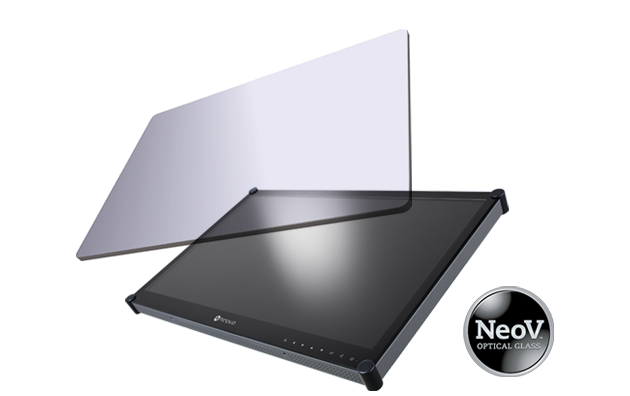
 NeoV™ Optical Glass Screen
 Anti-Burn-in™ Technology
SI can configure Power On and Power Off schedules to automatically control device operating hours.
This allows devices to turn on before business hours and power off after operations end, ensuring that displays are available when needed while reducing unnecessary energy consumption.
Scheduling solutions are widely used in offices, retail stores, classrooms, and public display environments.
Supported Devices
| Device Model | Power On Scheduling |
|---|---|
| NSD Gen3 | Supported |
| DS Gen1 | Supported |
| Meetboard 4 | Supported |
| Meetboard 4 Prime | Supported |
Configure a Power On Schedule
- Navigate to Scheduling → Settings.

- Use filters to locate the devices you want to configure.

- Select the target device or devices.

- Configure the Power On schedule.
.Weekday – Select the days when the schedule should run.
.Time – Specify the time when devices should automatically power on.
- Configure the Power Off schedule.
.Weekday – Select the days when the schedule should run.
.Time – Specify the time when devices should automatically power on.
- Click Apply to save the schedule.
The selected devices will automatically power on and power off according to the configured schedule.
Example Scenario
An organization wants all office displays to automatically operate during working hours.
Example configuration:
| Schedule | Time |
|---|---|
| Power On | 08:30 |
| Power Off | 18:00 |

With this configuration, devices will automatically power on at 08:30 and power off at 18:00 on selected weekdays.