When specifying an interactive whiteboard for business meetings, Google EDLA is one part of the integration decision. System integrators also need to confirm application workflows, account policies, connectivity, conferencing equipment and ongoing management.
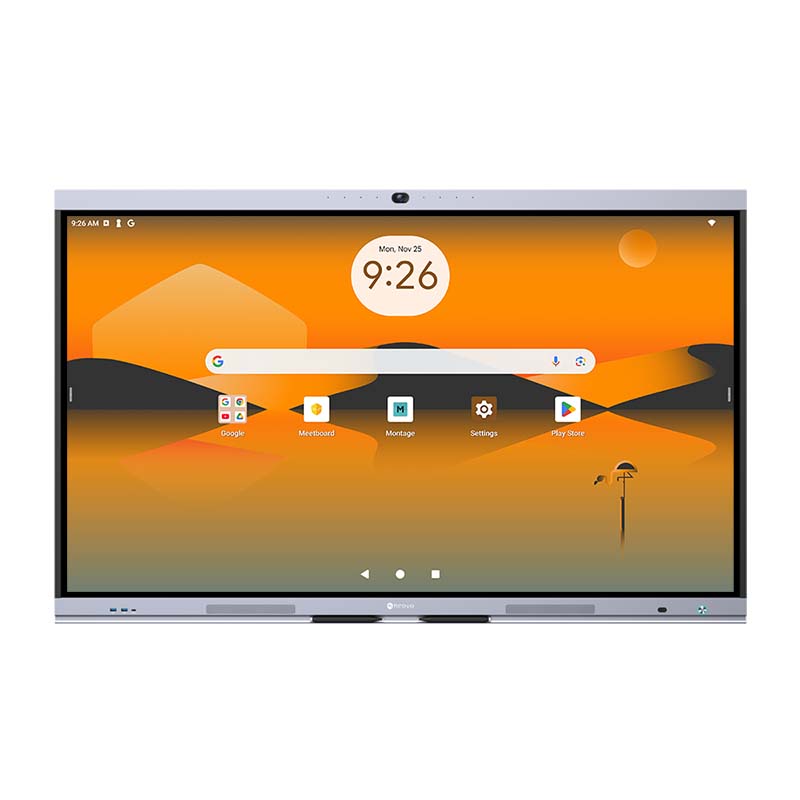
This guide explains how to evaluate a Google EDLA-certified interactive display for a client project. Both Meetboard 4 and Meetboard 4 Prime provide Google EDLA certification; Prime adds a built-in AI camera.
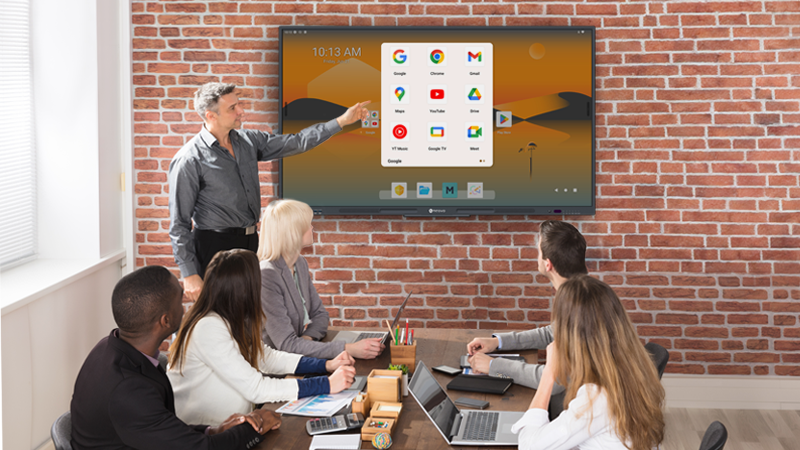
EDLA refers to Google’s Enterprise Devices Licensing Agreement. Google EDLA-certified Meetboard displays provide access to Google Play and Google Workspace, allowing teams to use supported Google and business applications on the display.
For a system integrator, the practical question is how those applications fit the client’s workflow. Verify the model, installed software, required accounts and supported app functions. Treat EDLA certification as a product capability, rather than a guarantee of compliance with every organizational policy or compatibility with every meeting setup.

Review how the client intends to open, edit and share documents through Google Workspace. Test representative files and the actual account configuration, including access to shared resources. Decide whether the room will use a dedicated account or another IT-approved sign-in process.
Include guest use and session handover in the evaluation. Users should understand how to sign out, handle meeting files and leave the display ready for the next session. Confirm those steps with IT before deployment.

Google Play access makes supported apps available on the interactive display. Availability alone does not establish that an app provides every feature needed for a client’s workflow. Check subscriptions, account permissions, device support and the intended functions of each selected application.
For video meetings, test camera, microphone, speaker and content-sharing behavior in the proposed configuration. If a workflow requires a connected computer or OPS module, include that equipment and its requirements in the project specification.

Ask the client’s IT team to define account access, network placement, application installation, data handling and update responsibilities. Review the actual controls available on the selected display and management service. Do not infer remote wipe, identity integration or other specific MDM functions from the EDLA label alone.
Meetboard offers management capabilities through Neovo Manager. Compare supported monitoring and management tasks with the project requirements, and confirm the required setup with AG Neovo.

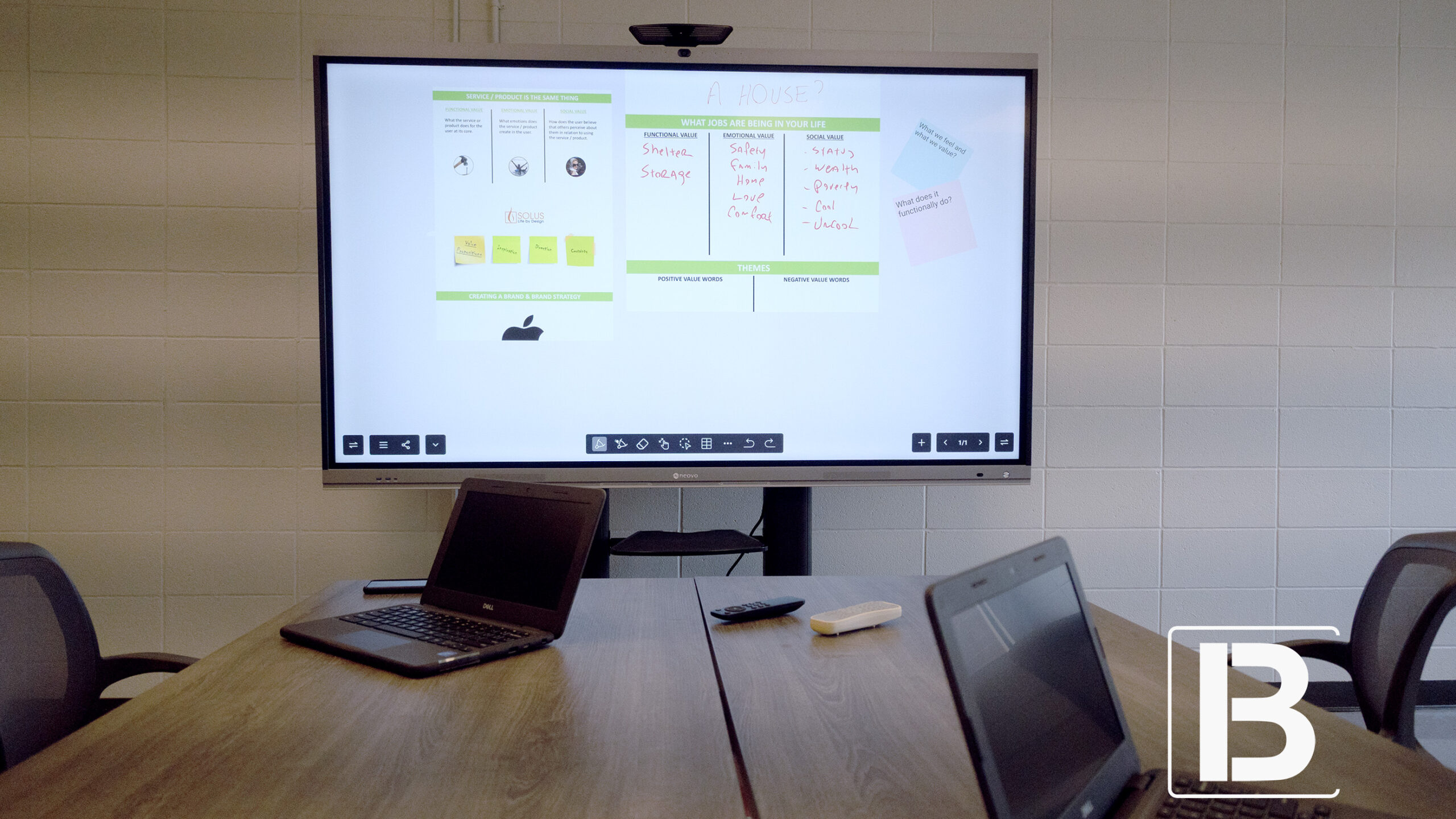
The interactive whiteboard should support the way the client presents, annotates and distributes meeting content. Test opening files, writing on the display, saving outputs and sharing them with the intended participants.
Review where content is stored and who can access it. Establish a handover procedure for shared rooms so users can complete their work without leaving account sessions or meeting files accessible to the next group. Confirm the available controls on the selected model.
Both Meetboard series combine Google EDLA, interactive whiteboard collaboration and wireless sharing. Distinguish them by the equipment configuration needed for the room:
Use the Meetboard interactive displays comparison and each product’s specifications, datasheet and manual to build the proposed configuration.
Before rollout, agree the tasks that demonstrate the solution meets the project brief. Test app sign-in, Google file access, interactive whiteboard output, wired and wireless sharing, camera/audio behavior and the intended management tasks on the client network.
Record the tested equipment, software and settings. Define who will maintain accounts, apply updates and provide support after installation. A repeatable acceptance checklist helps the SI and client evaluate the complete solution rather than isolated features.
Share the conferencing platform, Google account workflow, existing AV equipment, display quantity and deployment schedule with AG Neovo. Request a technical discussion or demo to review the proposed configuration.
For a broader selection checklist, read how to choose an interactive whiteboard for office projects.


 NeoV™ Optical Glass Screen
 Anti-Burn-in™ Technology