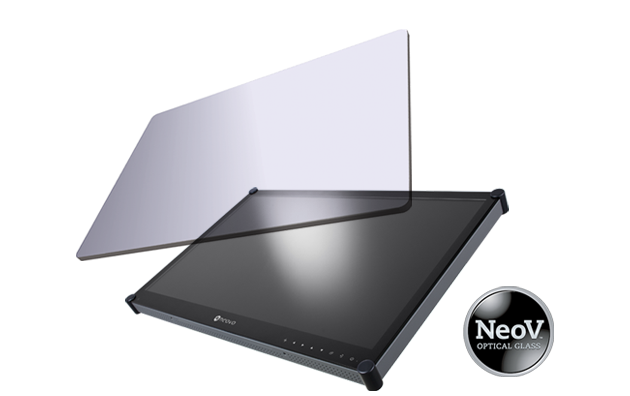
 NeoV™ Optical Glass Screen
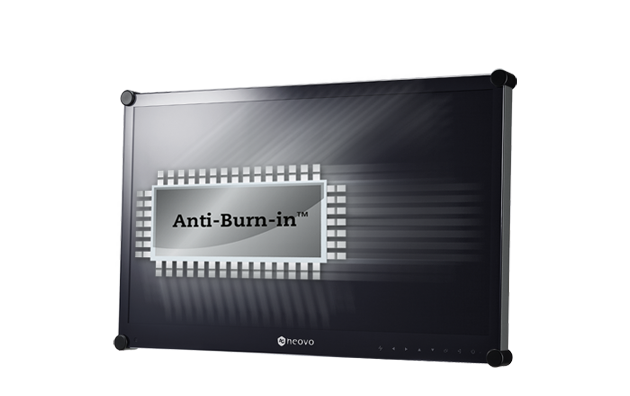 Anti-Burn-in™ Technology
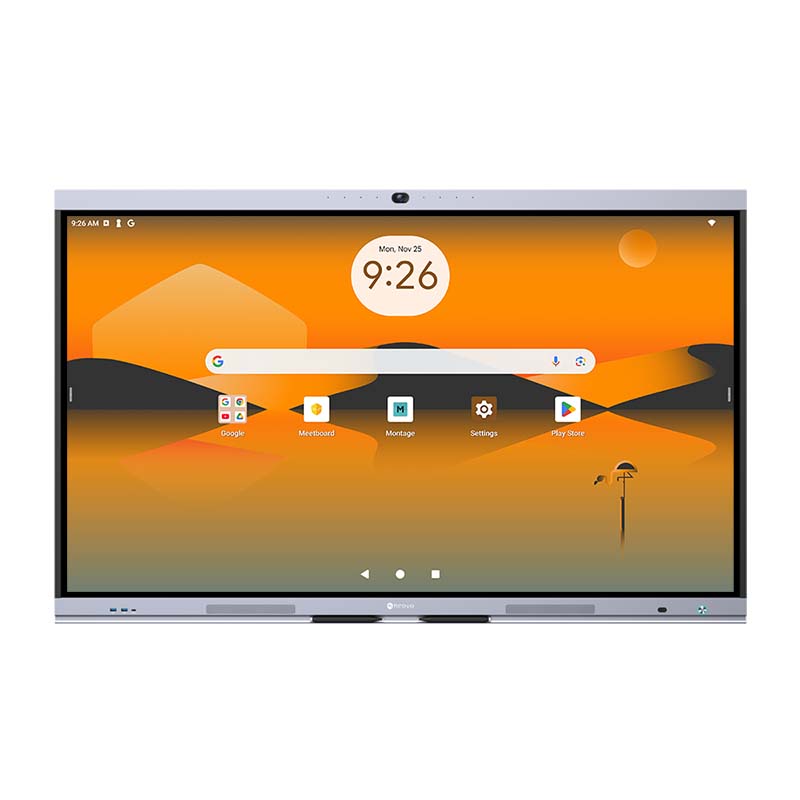


75" Interactive Display for Meeting Rooms
The IFP7504P-AO is a 75-inch Meetboard 4 Prime interactive display with Google EDLA certification, Android 13 and a built-in 4K AI camera. Interactive whiteboard tools, Google Workspace access and wireless sharing support meeting room collaboration.
For system integrators and AV/IT teams, review the 75-inch model’s dimensions, weight and mounting requirements against the installation site. Assess USB-C, the OPS slot and other interfaces alongside source devices, conferencing apps and network policies. Confirm the complete configuration before specifying the display.


4K AI Camera for Smart Virtual Meetings
The IFP7504P-AO revolutionizes video conferencing with its 4K camera, offering crystal-clear visuals. Equipped with auto-framing, the camera adjusts to fit the number of participants, ensuring everyone is included. Sound tracking technology zooms in on the speaker’s face, creating a focused and engaging meeting experience.
Its advanced 8-array microphone captures voices with clarity, while the built-in speaker delivers crisp audio. Together, these features ensure productive, distraction-free conversations, keeping attention on the key participants and enhancing meeting efficiency.


4K AI Camera for Smart Virtual Meetings
The IFP7504P-AO revolutionizes video conferencing with its 4K camera, offering crystal-clear visuals. Equipped with auto-framing, the camera adjusts to fit the number of participants, ensuring everyone is included. Sound tracking technology zooms in on the speaker’s face, creating a focused and engaging meeting experience.
Its advanced 8-array microphone captures voices with clarity, while the built-in speaker delivers crisp audio. Together, these features ensure productive, distraction-free conversations, keeping attention on the key participants and enhancing meeting efficiency.


All-in-One Interactive Display with Google Services
The IFP7504P-AO revolutionizes video conferencing with its 4K AI camera and access to Teams, Zoom, and more via Google Play. Google EDLA certification guarantees secure, reliable performance, offering seamless integration with a wide range of Google apps. Designed to streamline collaboration, this all-in-one interactive display combines cutting-edge hardware and intuitive software to enhance productivity and elevate meeting efficiency. Enjoy crystal-clear visuals, effortless app access, and the security you need for modern business collaboration.

Google Workspace

Google Play

Google Docs, Sheets, and Slides

Google Security

Interactive Whiteboard Collaboration for Meeting Room Projects
Revolutionize your meetings with the Meetboard whiteboard app. Bring ideas to life, make real-time annotations, and collaborate effortlessly, sparking creativity and enhancing teamwork in every discussion.

Effortless Presentations and Versatile Display Options
Enjoy powerful, wireless presentations with the pre-installed Montage app, supporting AirPlay, Miracast, and Google Cast across PCs, Macs, tablets, and smartphones. The IFP7504P-AO also offers versatile display options, allowing you to show multiple screens at once for easier document comparisons, presentations, and enhanced collaboration.
Remote Meeting Collaboration
Combine video conferencing and whiteboard functionalities with MeetCloud. This feature allows for seamless remote collaboration, connecting your team from anywhere and working as productively as in the office.


The Ultimate Workspace Solution

Advanced Operating System
Powered by Android 13, the IFP7504P-AO offers a fast, intuitive, and secure user experience. Access a wide range of apps and enjoy smooth performance for all your interactive needs.

Fast and Reliable Connectivity
Experience faster and more reliable wireless connections with Wi-Fi 6. Streamline your online activities and ensure smooth video conferencing, file transfers, and internet browsing.

Crystal Clear Visuals
Experience stunning clarity and detail with 4K resolution, making your presentations and collaborative sessions more impactful.

Empower Your Creativity with the Active Pen
The active pen delivers a natural writing experience with a pressure-sensitive tip that adjusts dynamically based on applied pressure. Seamlessly connected via Bluetooth, it allows you to write, draw, and even switch presentation pages effortlessly with built-in buttons, combining creativity and control in one tool.

Easy File Access and Collaboration
Access, manage, and share your files from anywhere with ease. Supporting OneDrive, Google Drive, FTP, and SAMBA, IFP7504P-AO simplifies collaboration and enhances your productivity.

Expandability and Flexibility
The IFP7504P-AO includes an OPS slot, providing expandability and flexibility for additional computing power and functionality. Easily upgrade your interactive whiteboard display to meet the evolving needs of your office.

Slide Menu
Quickly adjust volume, brightness, and navigate to the homepage or tools with a simple swipe from either side of the screen.

Float Tool
Drag the float tool anywhere on the screen and customize quick access buttons to navigate essential functions with ease.


Reimagine Collaboration with Smarter Meeting Tools

Precision and Flexibility
The IFP7504P-AO comes with dual pens that allow for precise and flexible writing and drawing. Different pen tips offer varied writing experiences, enhancing your interaction with the interactive whiteboard display.

Access Information Instantly During Meetings
IFP7504P-AO’s built-in browser empowers your discussions with real-time access to information, images, and videos. Bring ideas to life and make every meeting more engaging and insightful.

Smart Handwriting Recognition
Ideal for enhancing meeting productivity, the AI handwriting recognition on the IFP7504P-AO instantly transforms handwritten notes into accurate, editable digital text. This feature eliminates manual transcription, making collaboration faster and more efficient.
Centralized Control for Every Meeting
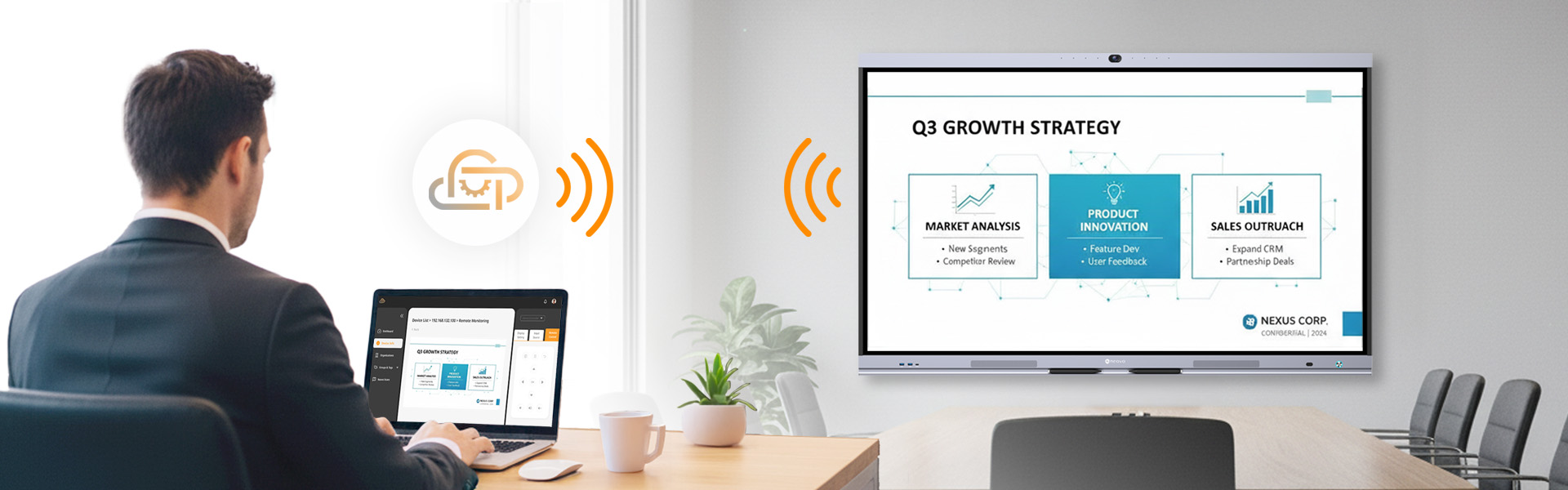
Neovo Manager gives IT teams full visibility and control across all Meetboards in the organization. Power scheduling, firmware updates, and status monitoring can all be managed remotely through a single dashboard — ensuring every display stays prepared and consistent for seamless collaboration.

Flexible BYOD Connectivity
With HDMI, USB, DisplayPort, and more, the IFP7504P-AO enables easy BYOD (Bring Your Own Device) integration, allowing you to connect various devices seamlessly. Enjoy smooth compatibility and a fully integrated setup that enhances any workspace.