



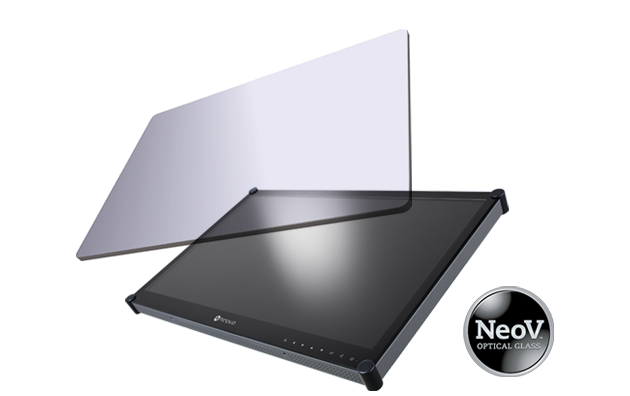
 NeoV™ Optical Glass Screen
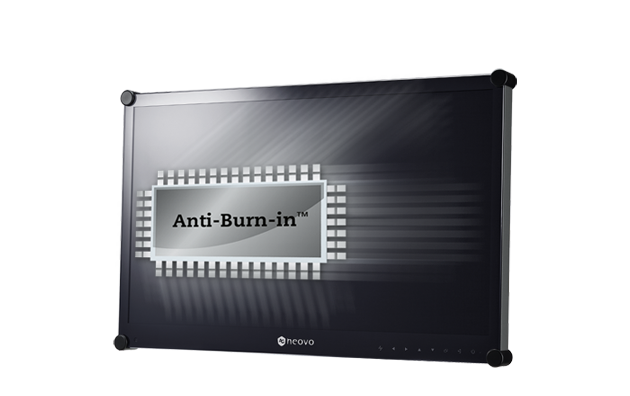 Anti-Burn-in™ Technology
User can share the real time screen of Meetboard during Teams meeting, so all the participants can see what is showing on Meetboard.
- Screen Share button
Click the screen share button at the tool bar below.
- Select Share Screen
Check if users want to share the audio from Meetboard (usually if users are going to share a video with sounds, then it is suggest to enable), then choose the “Share screen” option. - Allow Screen Share
Choose “start now” to allow Teams to share the screen of Meetboard. - Complete
Now all the participants can see the screen share of Meetboard - Minimize
Users now can switch to other apps and exit Teams to let it runs in the background. The screen share process would still continue. - Return to Meeting
Users can slide down from the top to notification shade and return to Teams meeting.


