An executive meeting often brings together information from different teams: financial results, project updates, customer insights and plans for the next stage of the business. The challenge is not simply to present that information, but to review it together, discuss the options and agree on what happens next.
An interactive display for a meeting room gives leaders a shared visual space to present, annotate and develop ideas. Combined with an appropriate meeting-room setup, it can support both in-person discussion and collaboration with remote participants.
This article looks at how interactive displays can support executive meetings before, during and after a discussion, and what system integrators and IT teams should consider when planning the room.
An executive meeting room may be used for a quarterly business review in the morning, a strategic planning session in the afternoon and a confidential discussion with remote participants later in the day. Each meeting has a different purpose, but the people using the room need a consistent way to see information, share ideas and work together.
A useful setup should make it straightforward to:
An interactive display can bring several of these activities into one shared workspace. Its value depends on how the display, applications and room equipment work together—and on the meeting process the team establishes.
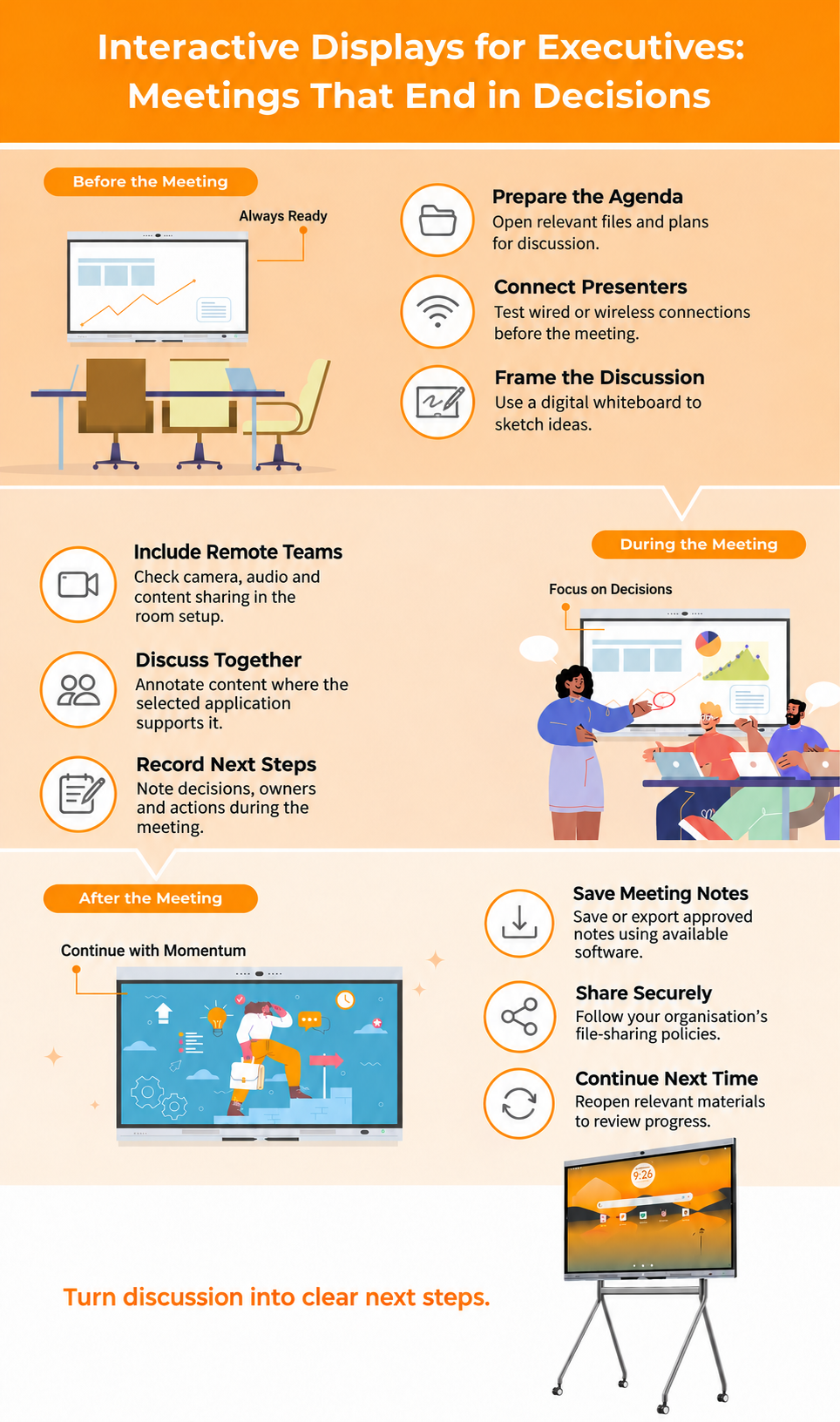
A productive discussion starts with the right information. Before the meeting, the organiser can prepare the reports, presentation files or plans that participants will need to review.
The room should also make those materials easy to bring onto the display. For some teams, that may mean connecting a laptop. For others, it may involve opening an approved application or accessing a shared file. The right approach depends on the organisation’s tools and security policies.
A digital whiteboard can provide a shared starting point for the discussion. For example, the team might outline the meeting objective, list the decisions required and identify the information needed for each one.
For confidential meetings, IT should define who can access files, how users sign in and what happens to meeting content when the session ends.
Executive discussions often move beyond the original presentation. A leader may want to highlight a change in a forecast, compare two proposals or ask the team to explore an alternative.
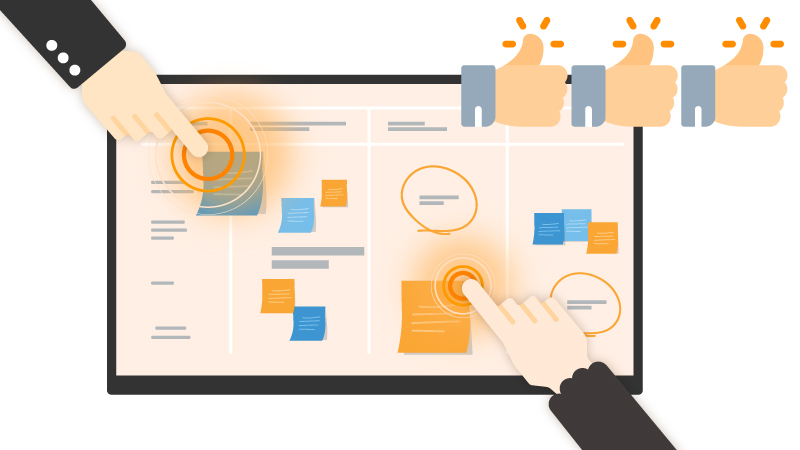
An interactive whiteboard for a conference room can provide a shared space for that discussion. Where the selected software supports annotation, participants can mark relevant figures, draw connections or outline questions directly alongside the material being reviewed.
For example, during a quarterly review, the team might display a regional performance report, highlight an unexpected result and use a whiteboard to map possible causes and next steps.
A hybrid executive meeting depends on more than the display. The camera, microphones, speakers and meeting application all influence whether people in other locations can follow the conversation.
When planning the room, test a typical meeting from the remote participant’s perspective. Can they see the people speaking? Is the shared presentation readable? If the team uses annotations, can remote participants see them through the selected application?
The answers depend on the complete room configuration. Testing the intended workflow is more useful than assuming every feature will work in every meeting platform.

During strategic planning, the team can use a shared display to keep the decision under discussion visible while reviewing the evidence and alternatives.
Before moving to the next topic, record what the group agreed, who owns the next action and when it should be reviewed. The display helps everyone see the same information; clear ownership helps the discussion continue after the meeting.
The value of a meeting continues after participants leave the room. Once decisions and actions have been confirmed, the team can save or export the relevant notes and whiteboard content using the methods supported by the selected software.
Share the approved output through the organisation’s normal channels so that participants know where to find it. If a decision needs further information, record who will provide it and when the team will return to the topic.
At the next meeting, the group can reopen the relevant materials, review progress and focus on the decisions that still need attention.
For system integrators, the starting point is not a list of product features. It is the client’s actual meeting workflow: who uses the room, what information they share and how local and remote participants need to work together.
Use the following areas to turn those needs into a practical room design:
A useful demonstration follows a real meeting from beginning to end: connect a device, open content, conduct a discussion, include a remote participant and save the agreed output. This helps both the SI and the client identify gaps before deployment.
Once the meeting workflow is clear, the team can evaluate which interactive display and supporting equipment fit the room.
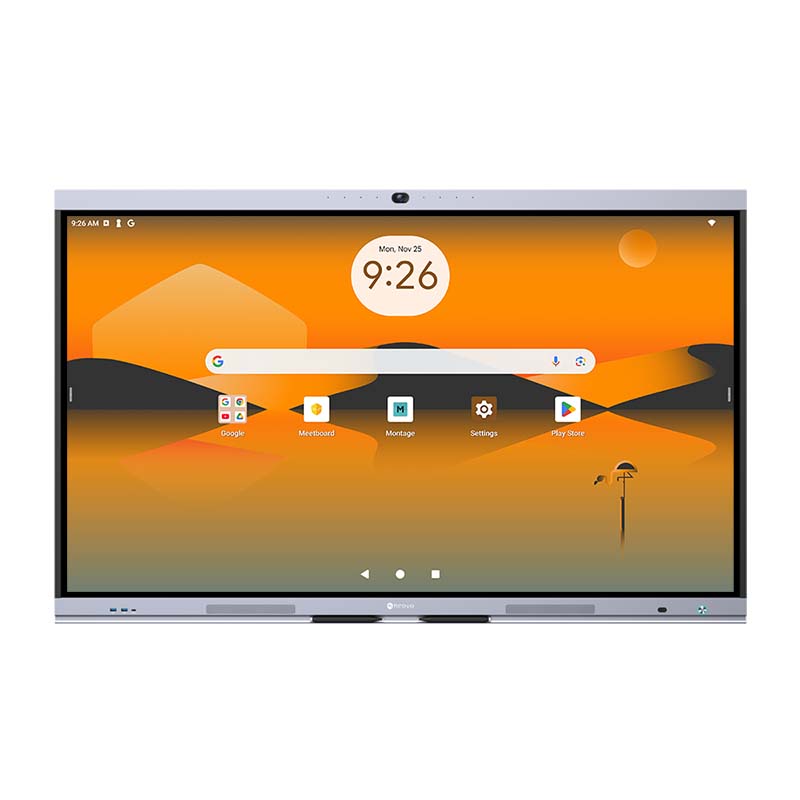
AG Neovo Meetboard interactive displays are designed for collaborative workspaces. Meetboard 4 and Meetboard 4 Prime offer interactive whiteboarding and wireless sharing, while the available models differ in their hardware and conferencing options.
For example, Meetboard 4 can be evaluated as part of a room setup with separately selected conferencing equipment. Meetboard 4 Prime includes a built-in 4K AI camera. The SI and client should confirm the available models, specifications and compatibility for their region and intended applications.
The goal is a room that fits how the leadership team actually meets—not simply a list of features on a specification sheet.
An interactive display can provide a shared space to present reports, review proposals, annotate information and develop ideas. With an appropriate room setup, it can also form part of a hybrid meeting environment. The benefit depends on how the display, software and meeting process are put together.
Start with the room’s intended use and the people who will use it. Then assess visibility, connections, whiteboarding, conferencing, security and ongoing support. Test a representative meeting workflow with the client before finalising the setup.
That depends on the whiteboard or meeting application and how content is shared. Some workflows allow annotations or whiteboard content to be shared with remote participants. Confirm and test the intended combination of display, software and meeting platform.
This guide focuses on how an interactive display can support executive meetings and how to plan the room around those workflows. For a closer comparison of display size, connectivity, cameras and other selection criteria, read our interactive display buying guide.
To learn more about Google applications in the meeting room, explore what Google EDLA brings to business meeting displays.


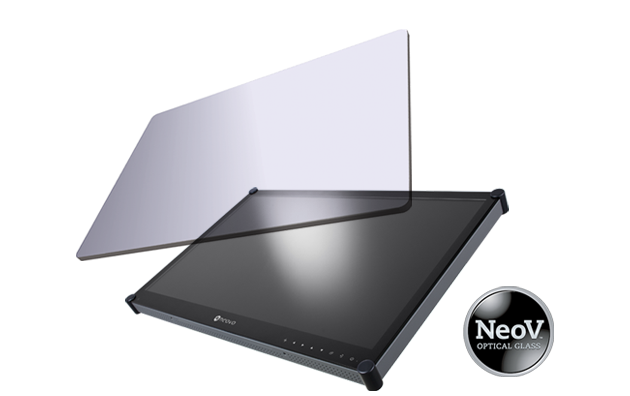 NeoV™ Optical Glass Screen
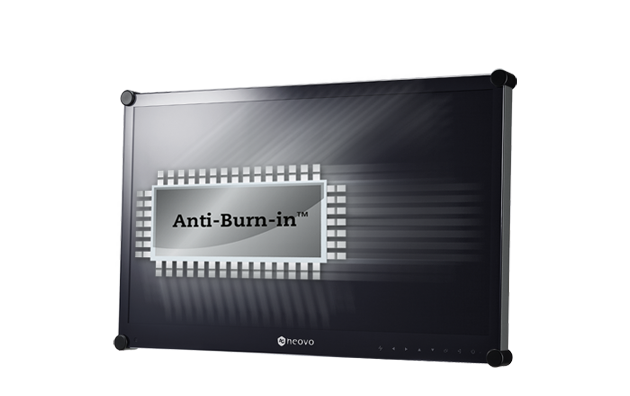 Anti-Burn-in™ Technology