

Use the Meetboard app  to write and draw with the included pens or your finger during meetings. You can choose from various markup tools, colors, and images.
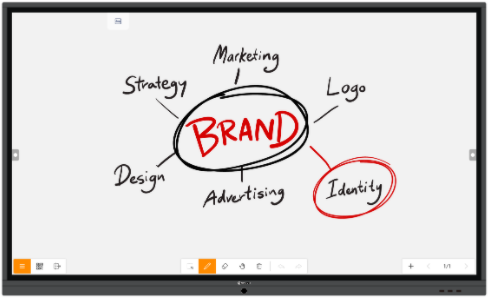
 with each corresponding pen.
 .
. icon then pinch in or out with 2 fingers or dragging one finger across the display.
You can select handwritten text, drawings and imported images. You can move, resize, rotate and change the color of the selection.
 (first tool in the toolbar).
You can import images and PDF files to your Meetboard session. You can even import images from the web via the Browser app.
 .
.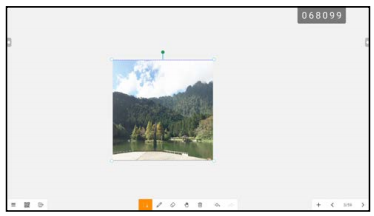
You can add images from the web directly to the Meetboard canvas by doing the following:
There are multiple ways to save and share a copy of your Meetboard session with other attendees.
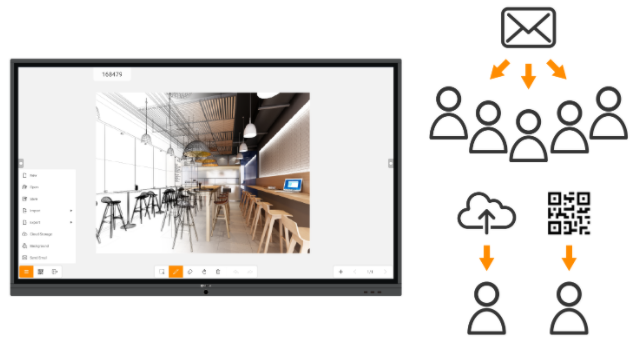
 .
.Share your session with devices on the same network via QR code by doing the following:
 icon at the bottom left side of the screen.
 .
.Note: If you are sharing via email for the first time, you will be prompted to configure your email settings. Follow the on-screen instructions to complete the configuration.
 .
.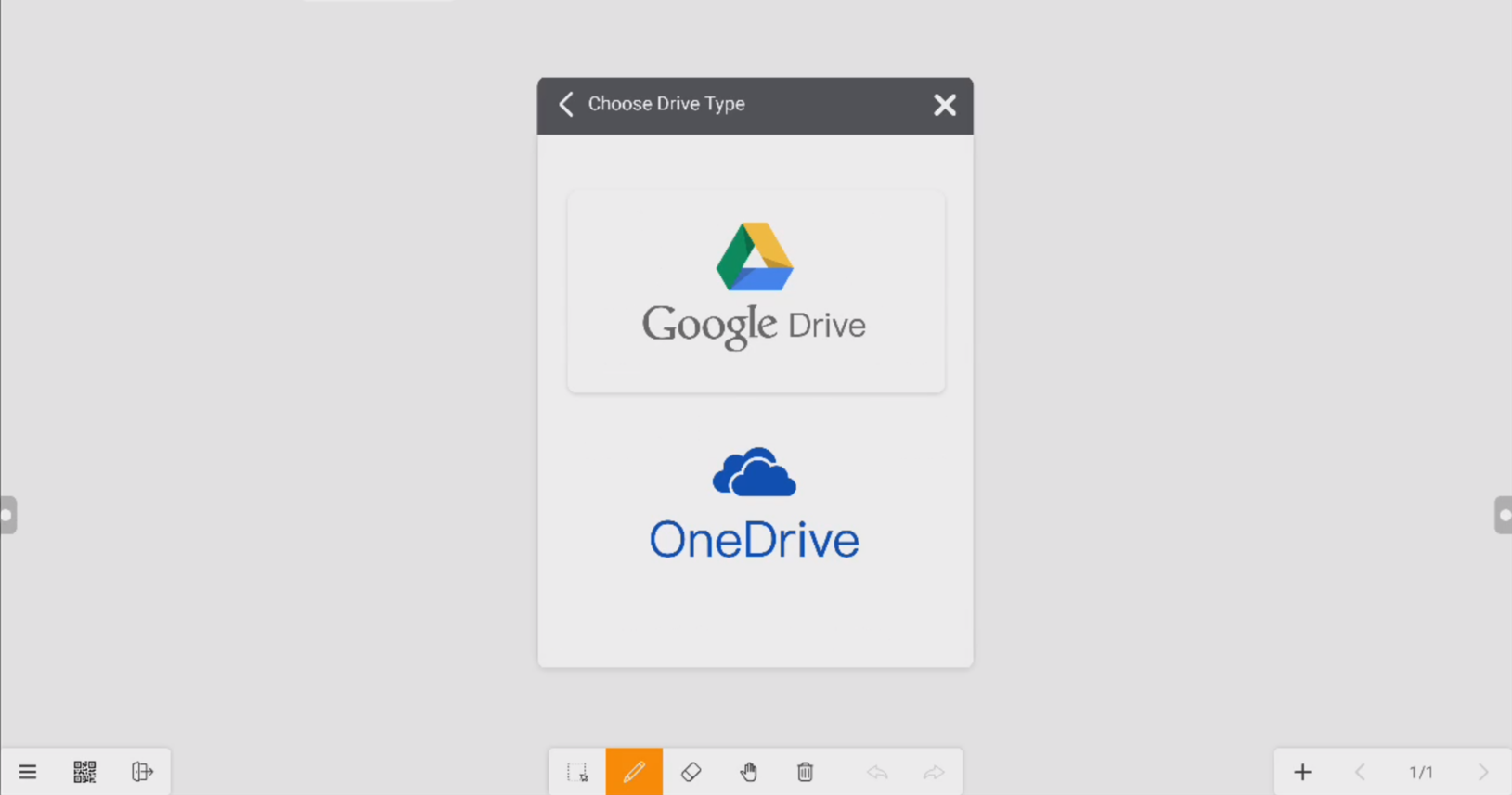
Note: To better protect your privacy, only uploading files is allowed.
Mail
– Set your email account
ScreenShare Pro
ScreenShare Pro is a network-based application that allows multiple devices to simultaneously interact with Meetboard. Once connected to the same Wi-Fi network, users can send videos, photos and audio files to Meetboard for a quick demonstration or control Meetboard from their mobile devices. Users can also mirror their Windows or Mac computers using the corresponding ScreenShare Pro apps.
WPS Office
Browser


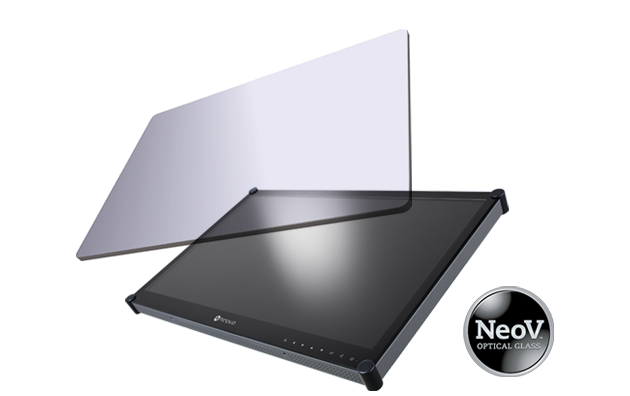 NeoV™ Optical Glass Screen
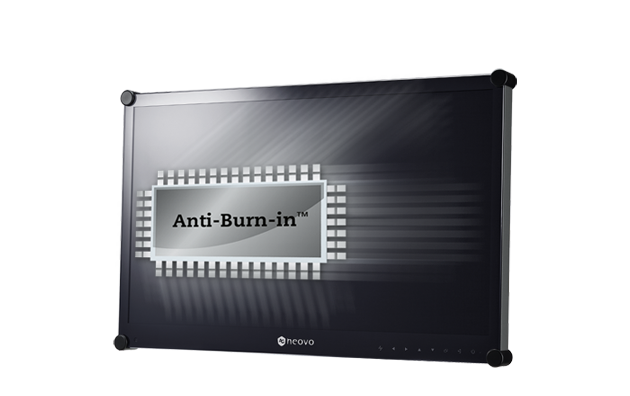 Anti-Burn-in™ Technology